Command Palette
Search for a command to run...
DynamiCrafter AI Video Generation Tool Demo
DynamiCrafter Converts Static Images into Realistic Dynamic Videos


Project Overview
Traditional dynamic image technologies primarily focus on generating video-like animations using random or domain-specific motions (such as human hair or body movements), thereby limiting their applicability to more general visual content.
In contrast, DynamiCrafter employs image-guided text-to-video generation. It connects the input complete image with initial noise as the input to the diffusion model, ultimately producing visually superior and logically coherent animated videos.
This tutorial will guide you through running the entire project with just a few simple commands, allowing you to hands-on experience this technology and observe its performance firsthand.
The tutorial supports two usage modes:
- Generate videos via images and text prompts;
- Generate videos via start frame, end frame, and prompts.
Note: Both methods cannot run simultaneously within the container. After one method finishes executing, you must terminate the terminal process and enter new commands again to launch the other mode.
Below are some effect demonstrations and execution steps.
Effect Demonstration

Execution Steps
I. Generating Video via Text Prompt
1. Switch Directory
cd DynamiCrafter
2. Upon command execution, you will enter the main directory of DynamiCrafter. Then, type the script startup command in the command line:
python gradio_app.py
3. At this point, the container will automatically execute the program based on the script contents. Wait until port 8080 appears in the interface, then copy the API address displayed on the right side and open it in a new page (real-name authentication required):
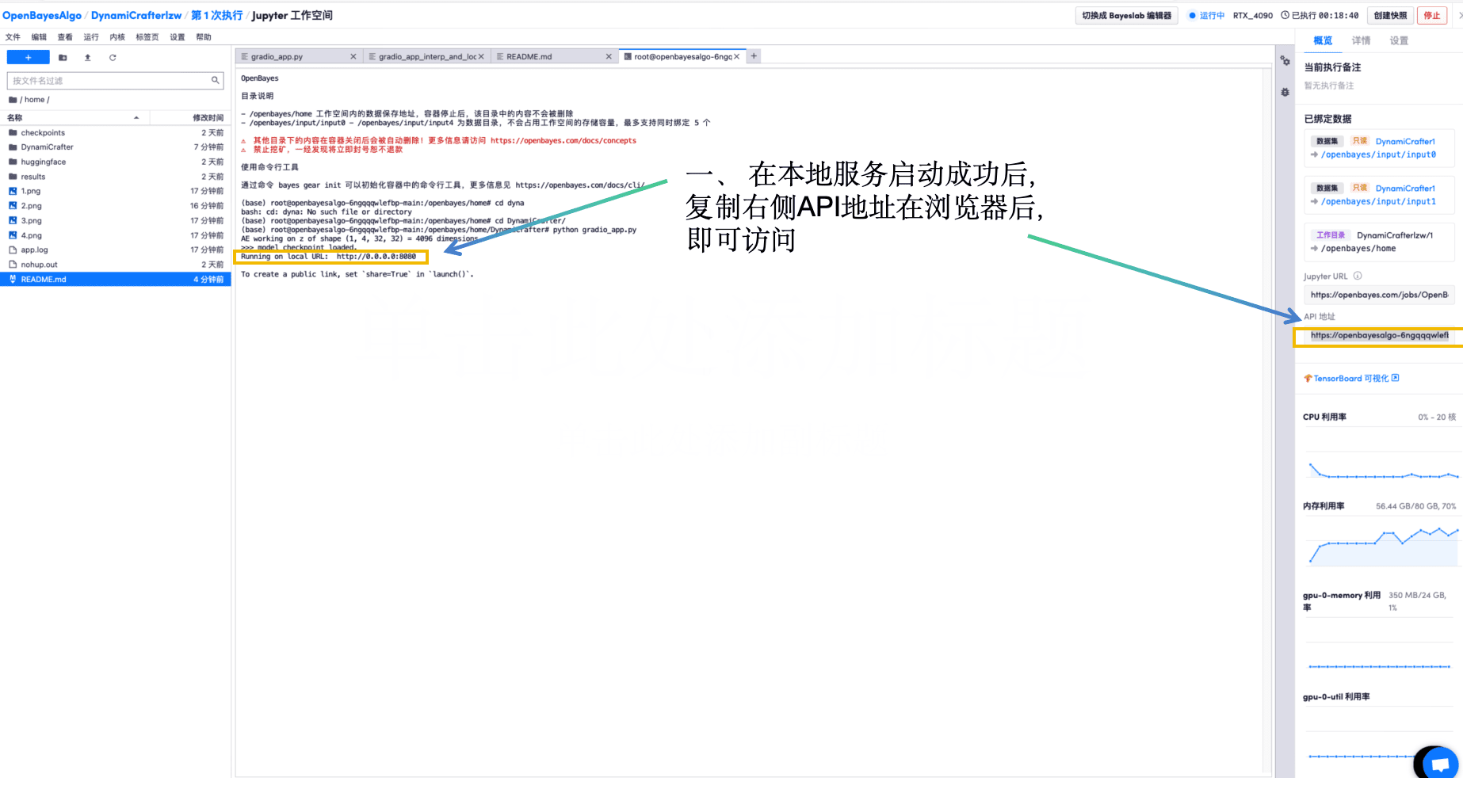
4. Once inside the webpage, follow these instructions to proceed:
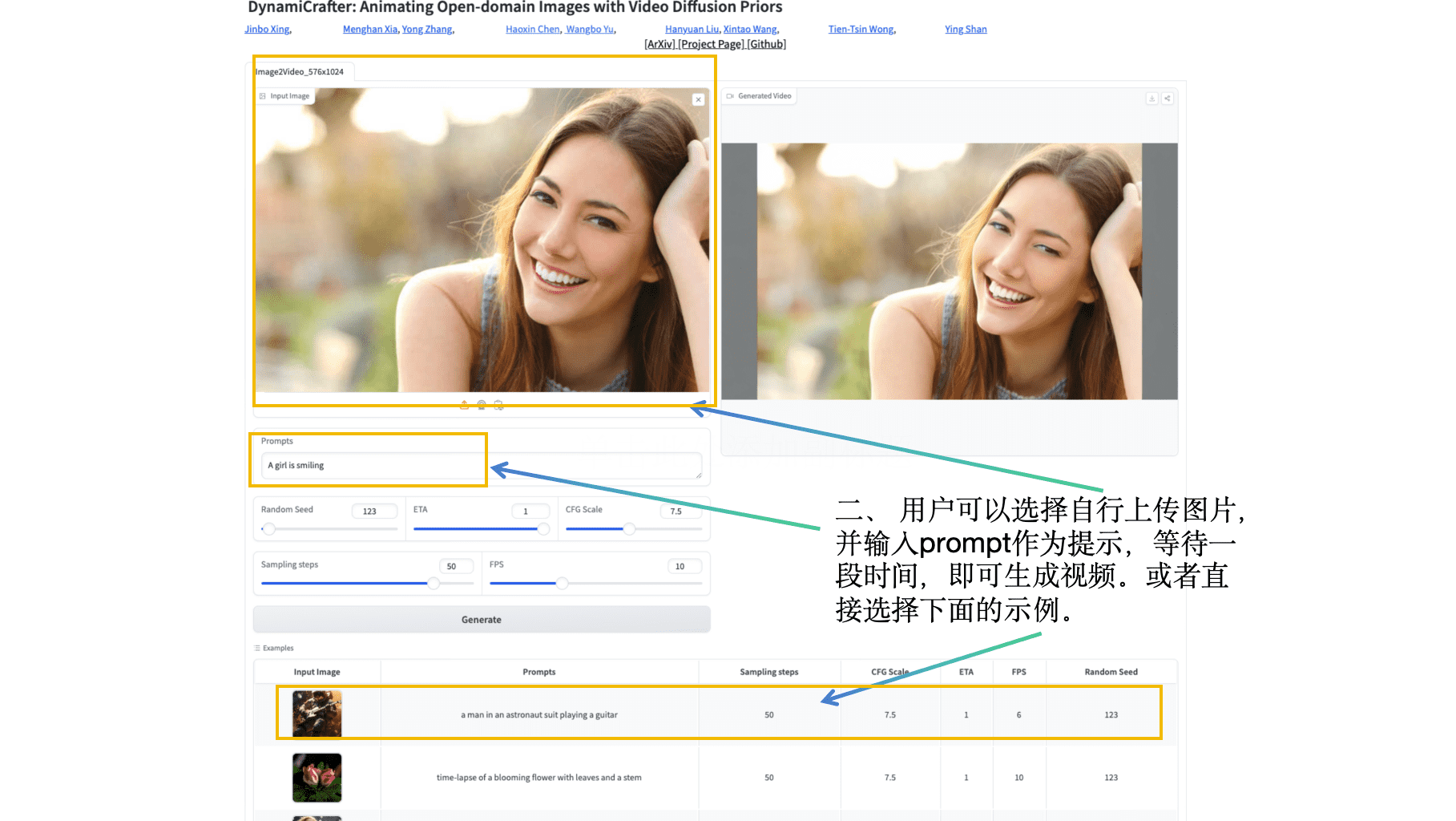
You can upload local photos, enter interesting prompts in the "Prompts" field, adjust hyperparameters at will, and generate your preferred videos.
II. Generating Video via Start Frame, End Frame, and Prompt
If you wish to further explore another style of video generation offered by this project, please follow the procedure below.
1. First, return to the previous terminal window used to access the website. Left-click to select the terminal window, press “Ctrl+C” to terminate the current process, and then type the following in the terminal command line:
python gradio_app_interp_and_loop.py
2. After successful task initiation, copy the API address shown on the right side and open it in a new browser tab/page.
Upon entering the webpage, you will see the following content:
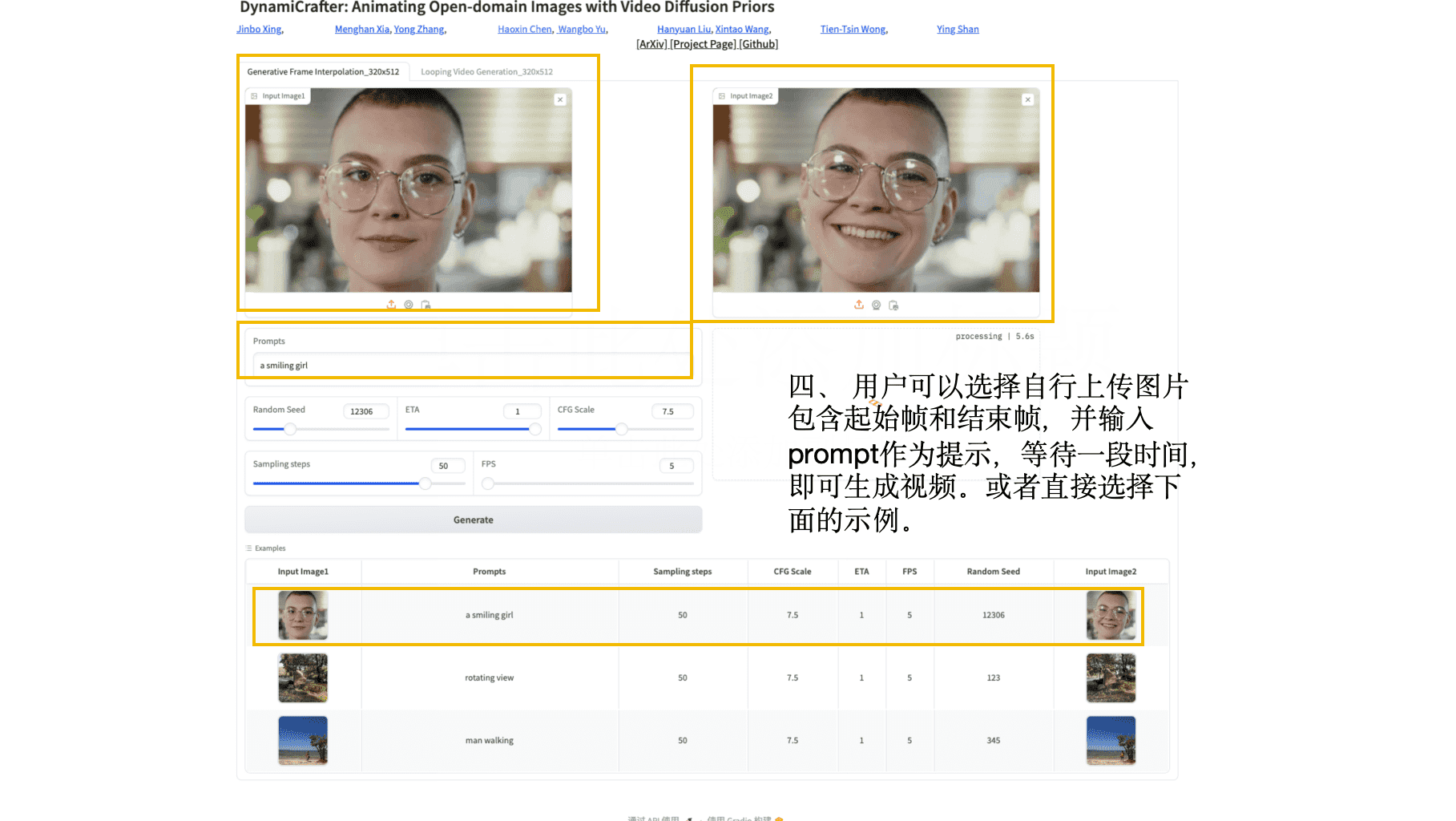
Upload an initial picture and an ending picture, enter prompts in the "Prompts" field, configure parameters accordingly, and you’ll be able to create your desired motion graphics or videos.
Notebook Overview
Level
Build AI with AI
From idea to launch — accelerate your AI development with free AI co-coding, out-of-the-box environment and best price of GPUs.