Krea-realtime-video: Real-time Video Generation Model
1. Tutorial Introduction

Krea Realtime 14B, released by the Krea team on October 20, 2025, is a 14 billion-parameter real-time video generation model capable of real-time long-form video generation, making it one of the largest publicly available real-time video generation models. Based on the Wan 2.1 14B text-to-video model, it utilizes self-forcing distillation training to transform the traditional video diffusion model into an autoregressive structure, thus achieving a truly real-time video generation experience. Compared to the earlier Wan 2.1 1.3B model, Krea Realtime 14B shows significant improvements in complex motion modeling, high-frequency detail reproduction, and long-term temporal consistency. On a single NVIDIA B200 GPU, it achieves a text-to-video generation rate of 11 FPS with only 4 inference steps. Krea Realtime's real-time nature allows creators to modify prompts and preview results in real-time during the generation process, enabling a creative "generate and direct simultaneously" interactive experience. This capability greatly improves the iteration efficiency of video creation.
This tutorial uses a single-card RTX-PRO-6000 graphics card. The project prompts support both Chinese and English, and support text-based video, image-based video, and real-time camera input.
Please note that the project in this tutorial only supports the English interface.
2. Project Examples
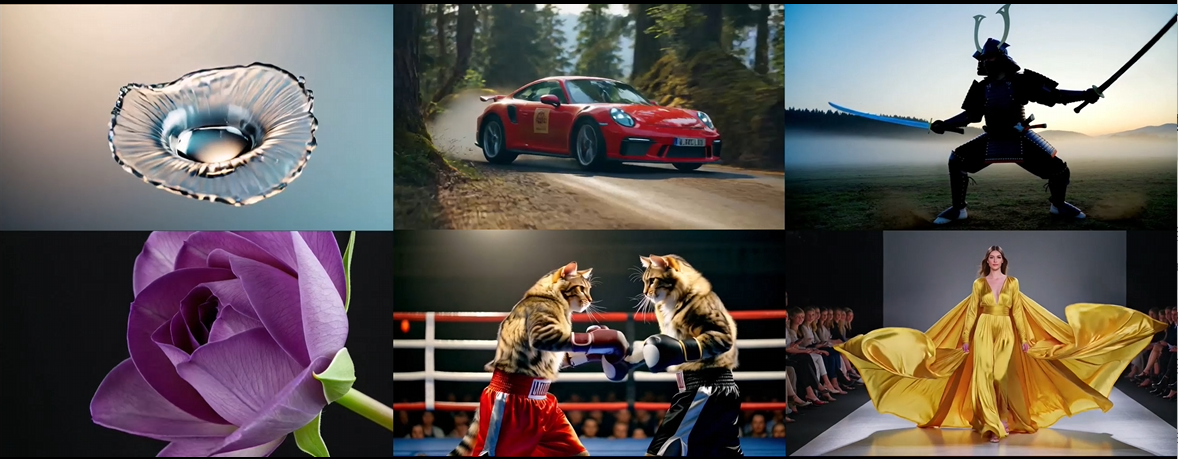
3. Operation steps
1. After starting the container, click the API address to enter the Web interface
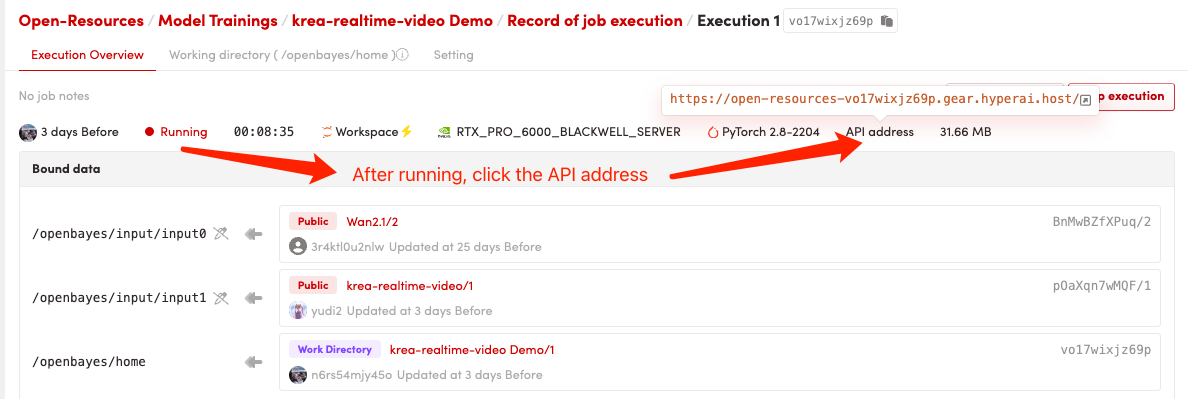
If "Bad Gateway" is displayed, it means that the model is initializing. Since the model is large, please wait about 5-6 minutes and then refresh the page.
The first video generation after entering the system will be relatively slow, please be patient. Subsequent video generation speeds will increase.
2. Steps for using text-to-video (t2v)
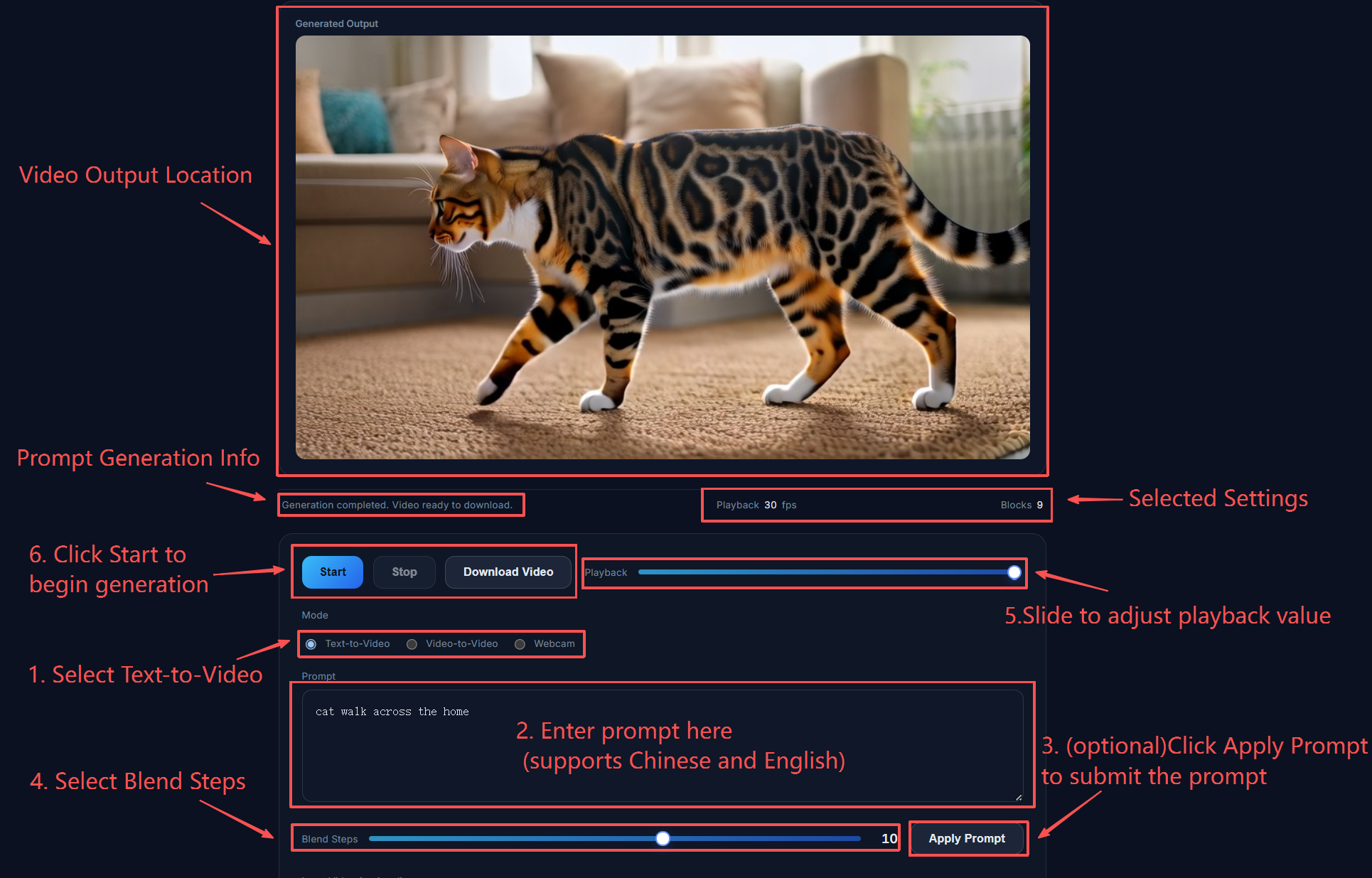
Parameter Description
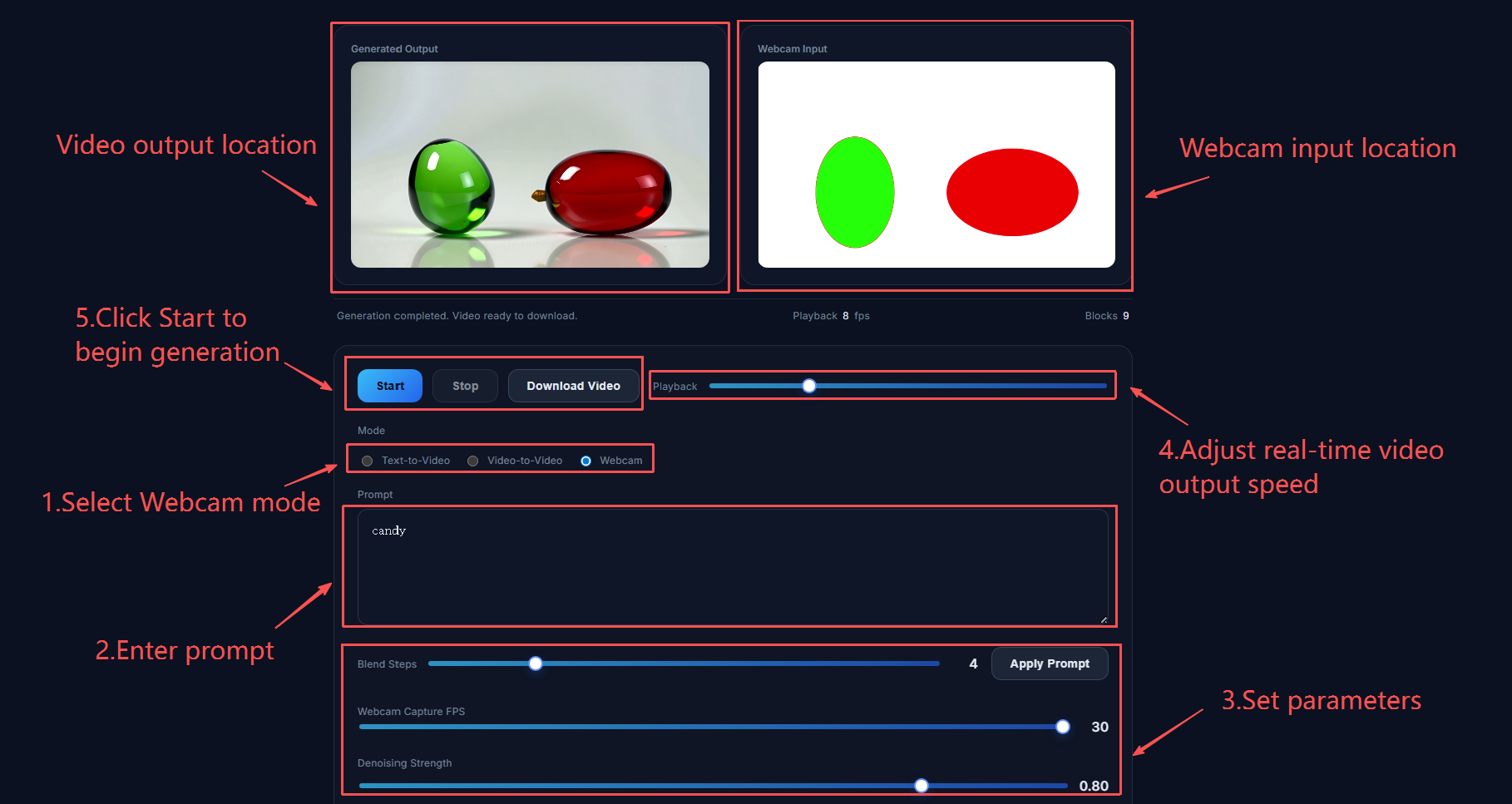
- Playback: The speed at which the video is played back after each block is generated. A noticeable pause will occur when Playback > 4.
- mode: Select the mode. There are three modes: Text-to-Video, Video-to-Video, and Webcam.
- Promot: Prompt word. Used to determine the content generated in the video. It can be modified midway and the prompt word can be updated in real time by clicking Apply Prompt.
- Blend Steps: Determines how many steps the model takes to gradually integrate the features of the new cues into the video.
- Denoising Strength: The intensity of noise reduction. The higher the value, the more the generated result deviates from the original image, and vice versa.
- Webcam Capture FPS: The speed at which the camera captures images. A suitable value is needed; otherwise, the model's processing speed may not be able to keep up.
- Width/Height: The width and height of the final generated video.
- Seed: The seed used for video generation. A fixed seed determines one possible generation outcome.
- Number of Blocks: The number of video blocks generated. The more blocks, the longer the generated video.
- Denoising Steps: The number of iterations the model performs to recover an image/video from pure noise. More steps result in more detailed denoising and higher image quality, but slower generation.
- Timestep Shift: Video smoothness. A higher value results in more video changes but is more prone to instability; a lower value results in more stable footage but may make motion slower or less noticeable.
Tip: Try not to modify Width/Height, as it may cause problems.
3. Steps for using video-to-video (v2v)
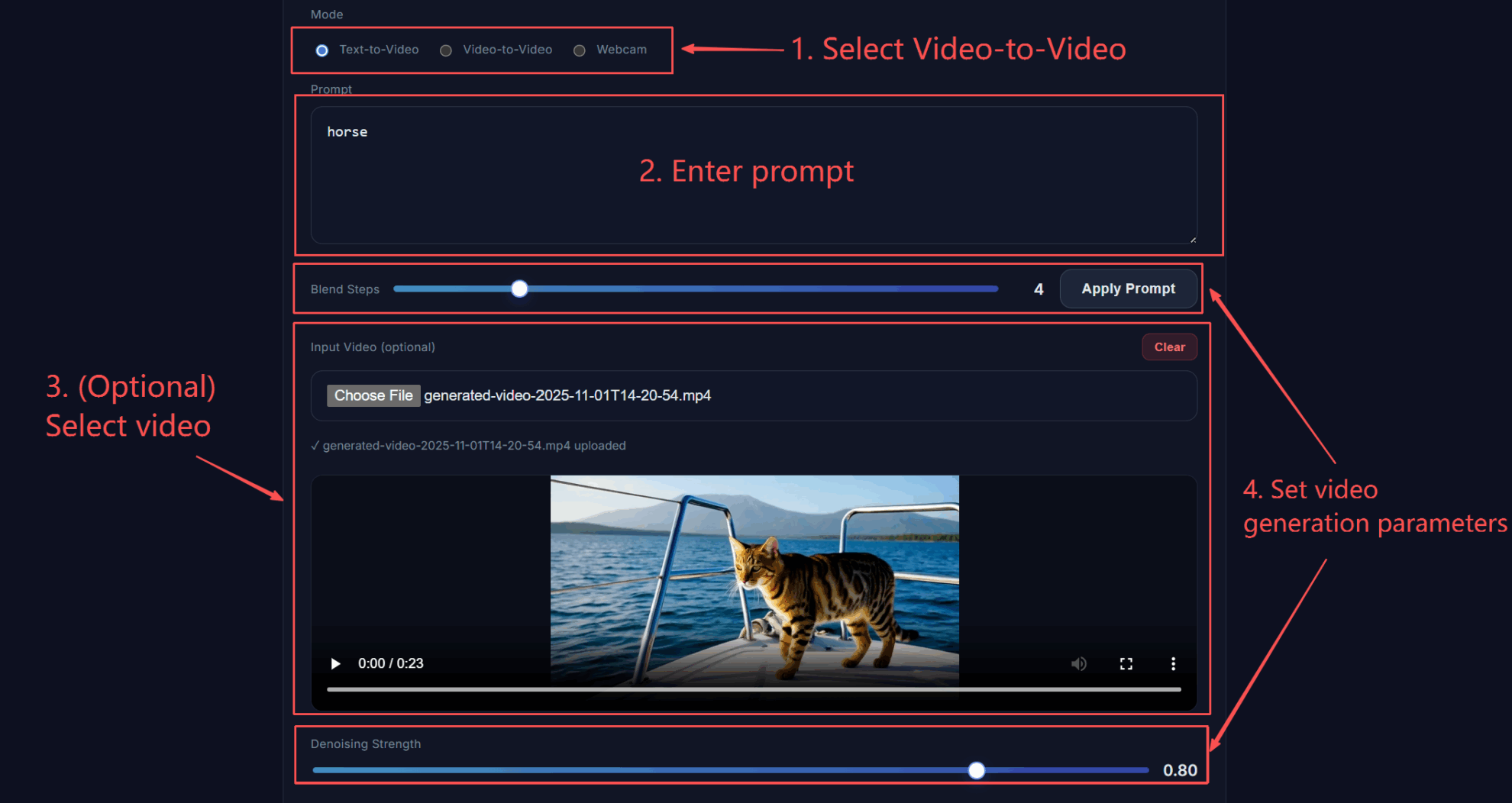
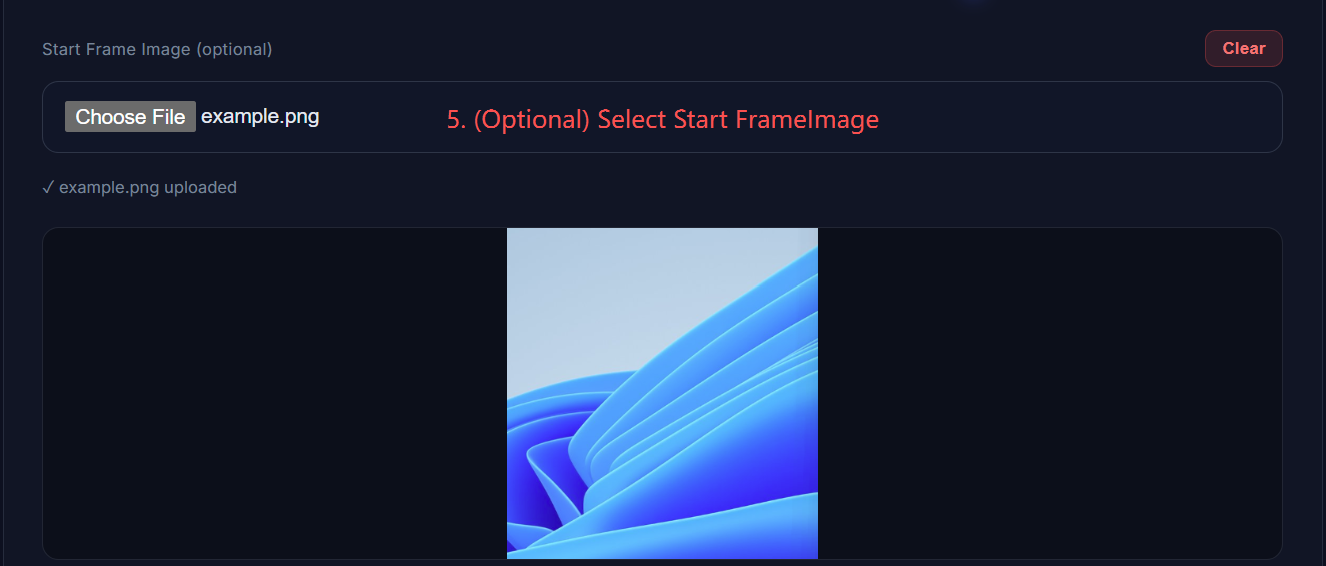
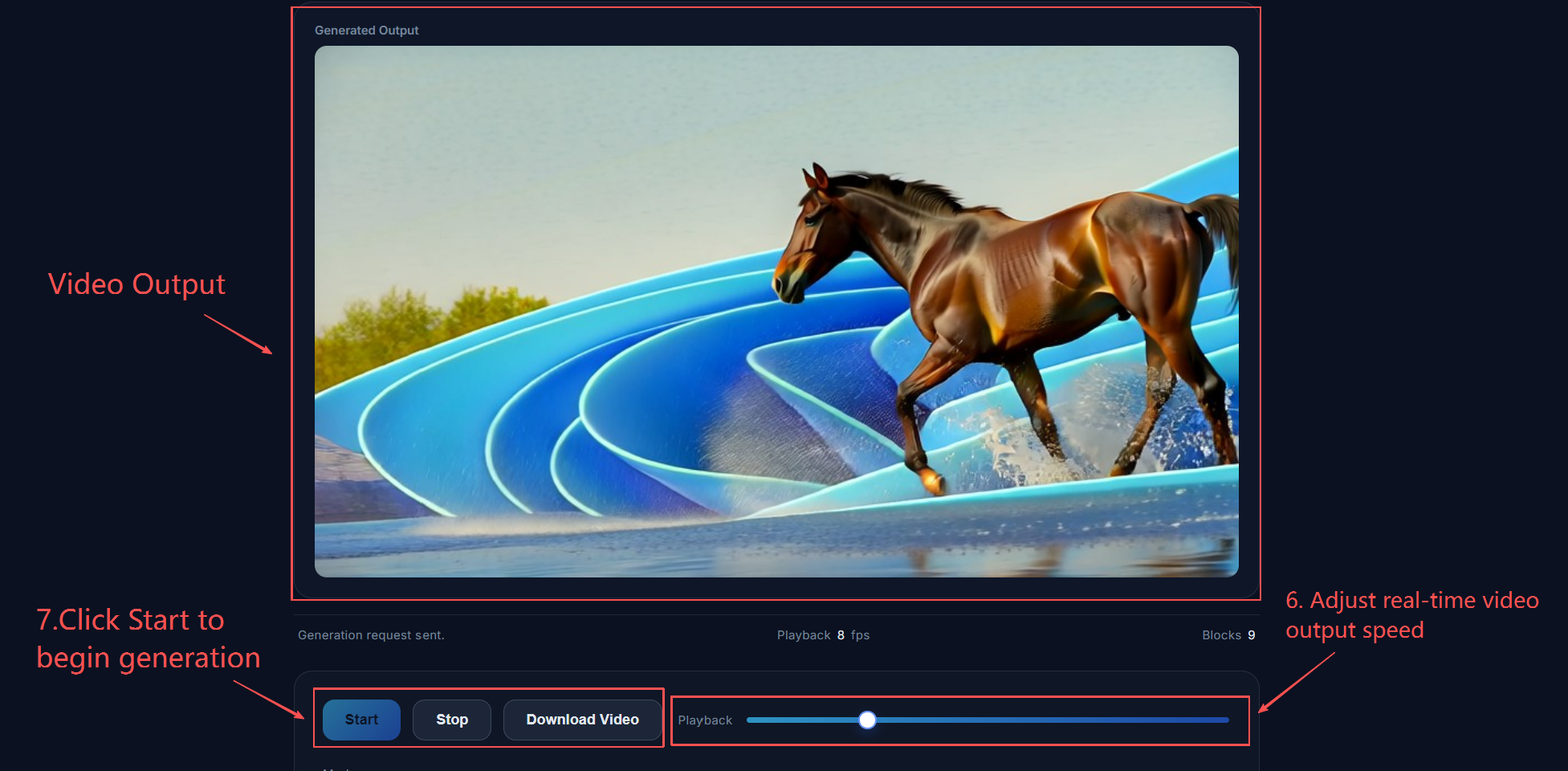
4. Webcam Usage Steps
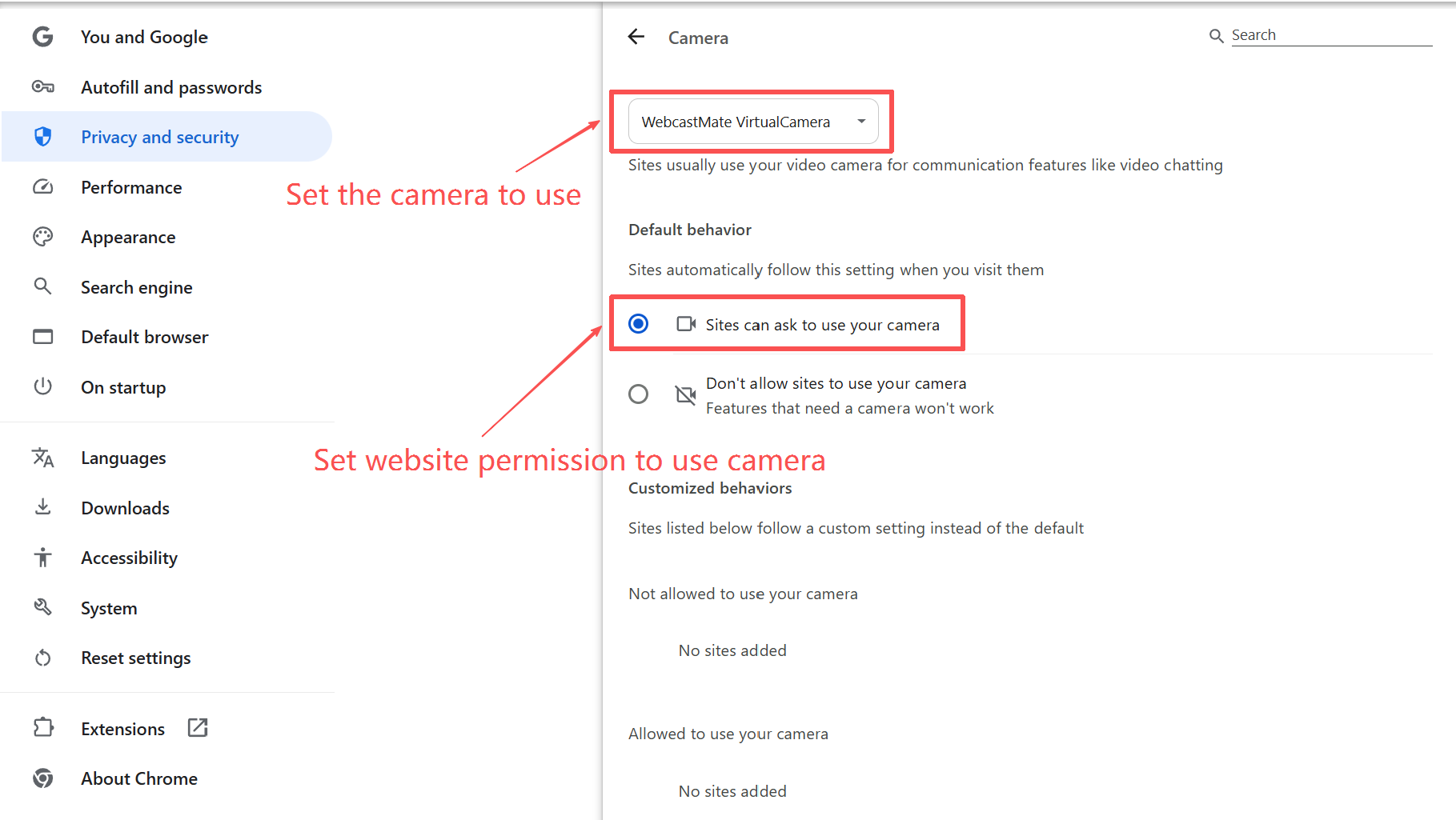
Prerequisites: Click on Webcam. A pop-up window will appear in your browser regarding your webcam. Select the webcam you want to use (an external camera or screen recorder will do) and allow the webpage to use your webcam. If no pop-up window appears, you can also modify it in your browser's settings.
Each browser is different; this tutorial demonstrates the webcam settings for Google Chrome.
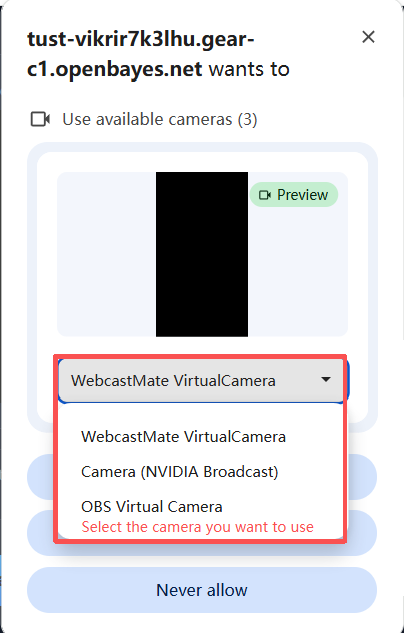
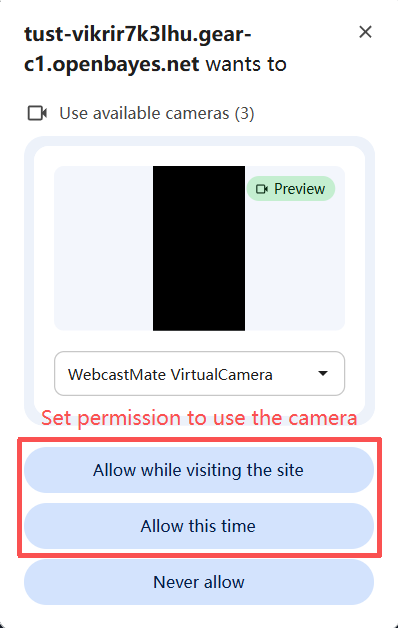
If there is no pop-up window, you can also modify it in your browser settings.
Start Webcam video generation
5. Video Download
To download the generated video, simply click "Download Video".
6. Frequently Asked Questions
1. Do I need to wait 5 minutes to re-enter the webpage after exiting it?
As long as the container is not closed after it is opened, there is no need to wait again.
2. The interface is only in English, and I don't know the function of each feature.
Some functions are explained in "III. Operation Steps –> 2. Text-to-Video (T2V) Usage Steps", which may not be entirely accurate. Those who don't understand or are interested can take a look.
3. The video has not appeared.
The initial setup might have been too large, or the system might have disconnected. Try refreshing the webpage or adjusting the parameters to reduce the generation load.
4. No output is given after typing English in the Prompt.
This project has extremely high requirements for English input; incorrect words will result in no output. It is recommended to check the accuracy of your input. Additionally, the Prompt function supports Chinese input.
5. Webcam is unresponsive.
Some browsers are indeed incompatible with this project; we recommend trying Google Chrome or another browser. If you select Webcam mode on your first attempt at generating this project, it may cause issues with the backend system. In this case, we suggest refreshing the page, generating a Text-to-Video file first, then switching to Webcam mode and adjusting the Webcam Capture FPS to below 10. This should allow for successful generation.
Citation Information
The citation information for this project is as follows:
@software{krea_realtime_14b,
  title={Krea Realtime 14B: Real-time Video Generation},
  author={Krea AI},
  year={2025},
  url={https://github.com/krea-ai/realtime-video}
}
Build AI with AI
From idea to launch — accelerate your AI development with free AI co-coding, out-of-the-box environment and best price of GPUs.