Command Palette
Search for a command to run...
HyperAI New Feature Launched | Configuring Environment Variables and Secret Variables for Computing Containers

In daily model fine-tuning, inference deployment, or automation tasks, we often need to interact with various third-party services and remote repositories, such as passing in the token of the third-party service, specifying the model repository address, and passing in runtime parameters.
To make everyone's scientific research and engineering practice safer and more efficient,**HyperAI (hyper.ai) has now officially launched the feature to configure "environment variables and secret variables" for computing containers.**Starting today, when creating or configuring computing containers (including tasks and Jupyter workspaces), you can directly inject a set of environment variables in the form of variable names/variable values to control container behavior in a more elegant and flexible way.
* Official documentation:
https://hyper.ai/docs/gear/env-vars
Configure environment variables
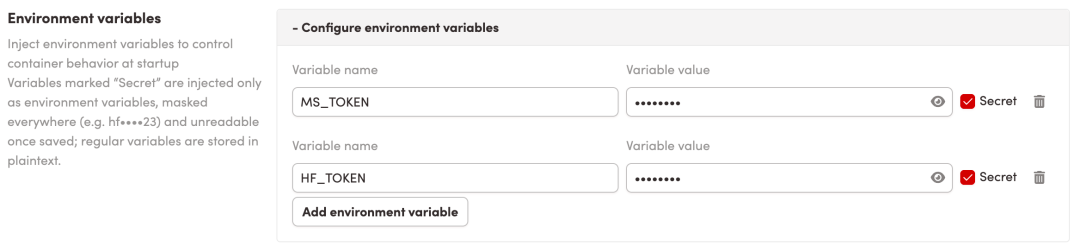
Each environment variable has a type, which is either plaintext or secret, determined by whether "Secret" is checked on the right side of the variable.
Find "Environment Variables" on the container creation/configuration page:
- Click "Add environment variable", and fill in the "Variable name" and "Variable value";
- Select variable type: The default is plaintext; if it is sensitive information such as keys or tokens, check "Secret" on the right to set it to the Secret type;
- You can add multiple variables, which will be saved along with the container after submission.
Desensitization and Reading of Secret Variables
Once a secret variable is saved, the platform will no longer return its value in plaintext. Members with editing privileges will only see the anonymized placeholder content throughout the page.
- After desensitization, only the first and last two characters are retained, and the middle characters are replaced with "••••" (e.g., hf••••23).
- When the original value is less than 8 bits long, it is displayed as "••••••" to avoid revealing the true length.
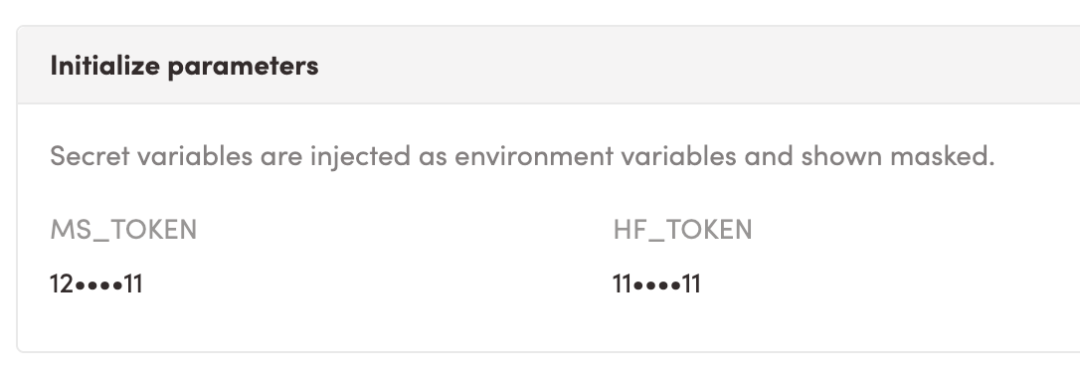 Members without editing permissions will not be able to read the value at all, and the interface will directly return null.
The de-identified values are for display purposes only and are not the actual values of the variables. The container always injects the original values that were saved at runtime.
Secret handling during reboot and cloning
Whether to use the original Secret's actual value depends on whether this operation restarts the same execution or creates a new execution.
Restart workspace**:**
Restarting a closed workspace (using "Start" or "Update & Start") is a continuation of the same execution, using the previously saved Secret value; there's no need to re-enter it.
- Quick Start: Directly reuse all the previous configurations, and the actual value of Secret is automatically filled in by the platform on the server side;
- Modify the configuration and enable it: Secrets are listed in an anonymized, read-only format and are retained by default. To change them, click "Replace" for the variable, enter the new value, and click "Cancel Replace" to revert to the original value.
Clone/Create Execution**:**
The following operations will generate a completely new execution, and therefore will not bring the original Secret's actual value:
- Cloning from public tutorials and public resources;
- Clone someone else's configuration and start it up; clone from automated modeling.
- Create a new execution from a previous execution by "Continue execution/Clone from this point".
In these cases, the cloner cannot read the original Secret in plaintext, and the platform will not carry it over to the new execution. The page will retain the variable names and prompt "The original Secret value cannot be retained, please enter a new value." You need to enter your own value for each Secret variable, or delete unnecessary variables before starting. Plaintext variables will be carried over to the new execution as usual.
Modify variable type**:**
The variable type can be switched between plaintext and secret:
- To change plaintext to Secret: Simply check the "Secret" box. The values you've already entered will be saved as the values for this Secret.
- To change Secret to plaintext: Uncheck "Secret". Since the original value of Secret cannot be read, it will be discarded after switching, and you will need to fill in the value of the variable again (the page will pop up a confirmation window first).
For more detailed information, please refer to the official documentation: